What's New in Wrike - November 2026
Our November edition is packed with exciting platform enhancements! From external AI Workmates and a redesigned AI Agents setup experience, to comment threads in the Wrike Stream and status update emails for External Request Forms, there's plenty to explore.
- Workmates - External AI Agents
- AI Agents - Redesigned Setup Experience
- Stream - Comment Threads
- External Request Forms - Status Update Emails
- Gantt Chart - Project and Task Dates on Canvas
- Wrike MCP - Intelligent Resource Allocation
- Wrike MCP & Klaxoon MCP - Whiteboard Integration
- Table View - Better Keyboard Navigation and New Shortcuts
- Dashboards - Enhanced Filtering
- Wrike Workspace - A Fresh New Look
- Stream & Inbox - API and MCP Activity Indicators
- AI Agents - Cheaper and Faster Simple Actions
- Dashboards - Table Widget Migration & Sunset
Workmates - External AI Agents
Available on Business and higher plans (Wrike Labs)
Introducing External Workmates-customizable AI agents built on Wrike's platform that join your workspace as active team members to automate complex end-to-end processes.
What's new?
- Dedicated User Accounts: Workmates join your workspace as individual colleagues with dedicated accounts to read context across spaces and execute tasks right where work happens.
- Active Contextual Support: Workmates can answer complex questions, assess project risks, summarize meeting notes into structured tasks, and convert creative briefs into detailed projects.
- External System Connections: Workmates can easily connect to external systems like Google Drive, Figma, or your CRMs to manage work across your tech stack.
- Ready-Made Setup Guides: Quickly spin up specialized agents using detailed setup guides for SOW Scoping, Marketing Campaign Performance & ROI, Portfolio Change History, and Project Manager Workmates.
📝 Please note: During the Labs phase, your company needs to run Claude Managed Agents to use External Workmates. Support for additional platforms is on the way!
Learn more about how to get started and to set it up, read our dedicated Help Center articles and this Community post.
AI Agents - Redesigned Setup Experience
Available on Business and higher plans
Building AI Agents just got faster and more intuitive. Based on your feedback, we've combined the conversational speed of a chat interface with the governance and precision of structured form controls, eliminating friction and dead ends so you can build with confidence.
What’s new?
- Introducing "Scopes": "Active Locations" is now "Scopes," better reflecting how you define boundaries. Set the exact reach of where your agent monitors triggers and executes actions.
- Appoint during setup: Define an agent’s scope right from the start of the build process. Setup remains completely optional so it never blocks creation, and all appointed locations remain visible and editable in one spot.
- Side-by-side builder: Chat and structured settings now sit side by side in real time rather than in separate tabs. Refine via prompt or adjust form fields, both panels stay continuously in sync.
- Sentence-style triggers and actions: Configure logic using plain, natural-language statements (e.g., "When status changes in the sub-items of the agent's scope… post a comment"). Input fields appear progressively and adapt to your selected scope.
- Clearer action filters: Action-level filters are surfaced directly in the flow, making it simple to govern agent behavior accurately on the first try.
Learn more about AI Agents in our Help Center article.
Stream - Comment Threads
Available on Business and above plans (Wrike Labs)
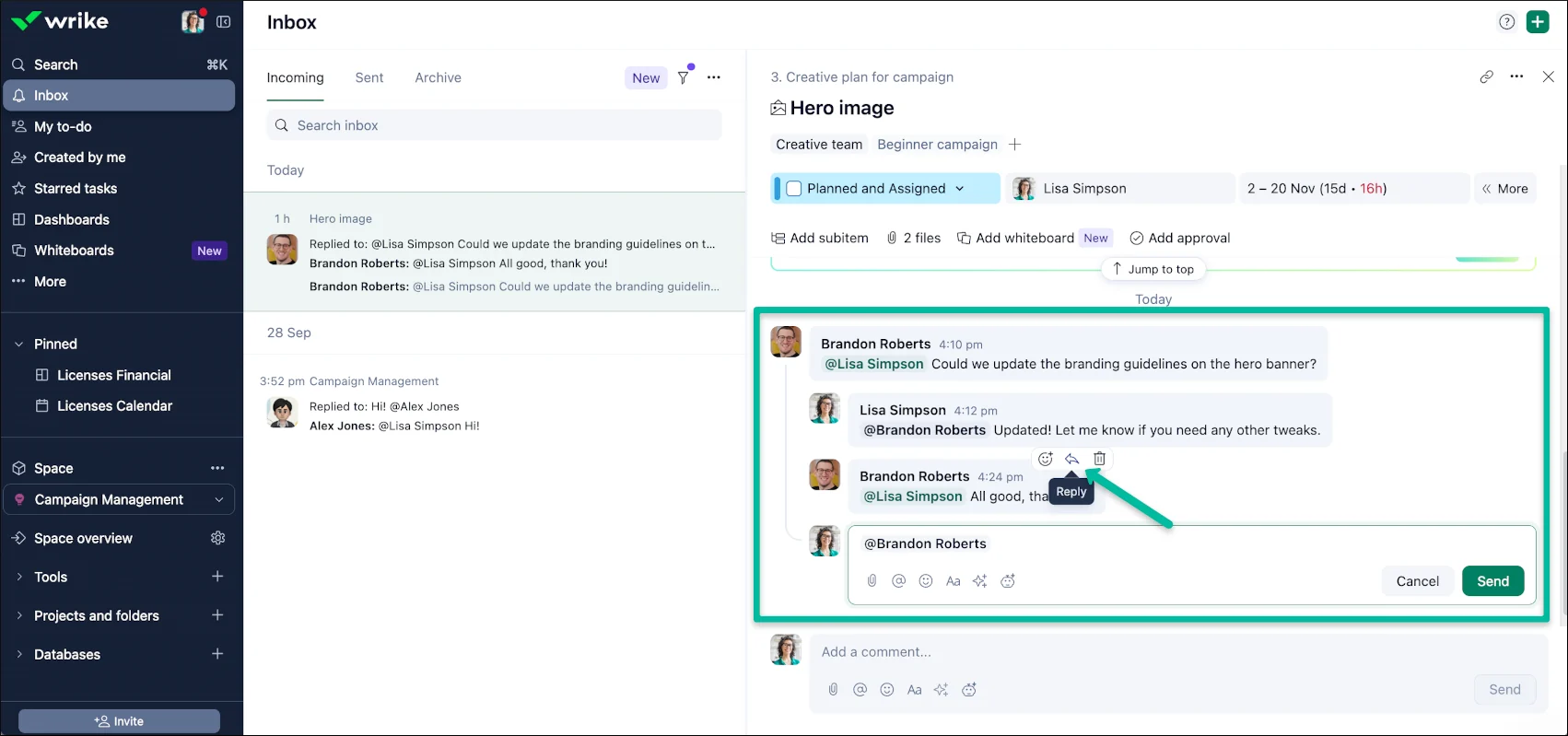
Wrike Stream now supports grouped comment threads, making it easy for teams to hold detailed, focused discussions on specific updates without cluttering the main item view.
What's new?
- Inline Thread Replies: Group related comments and reply directly to a specific comment to keep discussions organized.
- MCP and API Support: For comment threads, beyond just posting new comments.
- Inbox Integration: Differentiate simple @mentions from thread replies in your inbox with a dedicated "Replied to" label.
- UX Improvements: Enjoy a cleaner reply experience with a floating reply icon and a text box that does not automatically inject redundant @mentions.
For full details on threaded conversations, read this Help Center article and Community post.
External Request Forms - Status Update Emails
Available on Team and higher plans
External Request Forms have been upgraded to automate follow-up communication, keeping external stakeholders informed without manual effort.
What's new?
- Automatic Status Emails: Automatically send progress and status updates to external submitters as their request moves through your workflow.
- Clearer Confirmations: Submitters receive cleaner, branded confirmation receipts.
- Easier Follow-Up Replies: External users can reply directly to the automated status emails to update their request.
Learn more about email communication with external requesters in this Help Center article.
Gantt Chart - Project and Task Dates on Canvas
Available on Team and higher plans
The New Gantt Chart has been updated with a timeline display setting that lets teams see exact scheduled dates right next to item titles on the chart.
What's new?
- On-Chart Date Labels: Display start and due dates directly on the Gantt timeline canvas next to item names.
- Simple Activation: Enable the dates view instantly via the Gantt chart's three-dot settings menu -> Show on chart -> Dates.
- Date Requirements: Dates are displayed for items with both start and due dates configured, while milestones show their single scheduled date.
Wrike MCP - Intelligent Resource Allocation
Available on all plans (Wrike Labs)
Wrike Model Context Protocol (MCP) has been upgraded with intelligent staffing suggestions to streamline task delegation and prevent team burnout.
What's new?
- Skill and Availability Matching: Recommends the optimal assignees for your tasks, projects, folders or space by evaluating real-time calendar availability alongside required skill sets and job roles.
- Capacity Protection: Automatically respects real capacity limits and highlights potential resource overloads to assist with scheduling.
- Targeted Candidate Pools: Narrow candidate pools down by specific teams or space memberships to locate target department experts.
- Workload Impact Visibility: Evaluates proposed assignments by displaying projected workload impacts by day or week.
For details on how it works and how to set it up, check out this Community post. You can also see the full list of tools on the Available Tools in Wrike MCP page.
Wrike MCP & Klaxoon MCP - Whiteboard Integration
Available on all plans
The connection between the Wrike and Klaxoon MCPs is now available, enabling AI agents to work seamlessly across both tools.
Agents can now read task context, locate an attached whiteboard, and interact with its content in a single, uninterrupted flow, rather than stalling or switching manually between the two systems. The new tools are also available directly in both the Claude and OpenAI marketplaces.
What's new?
- Whiteboard ID Retrieval: Extract the unique whiteboard ID of any board attached to a Wrike task and pass it to the Klaxoon MCP to act on that specific board.
- Attach and Detach via API: AI agents and developers can now attach or detach Klaxoon whiteboards to and from Wrike tasks or projects via the API.
- Seamless Cross-Tool Workflows: Agents can move between a Wrike task and its attached whiteboard without losing context, keeping end-to-end processes intact.
Learn more about the Wrike and Klaxoon MCPs.
Table View - Better Keyboard Navigation and New Shortcuts
Available on all plans
Navigation and data entry in the New Table View are now faster with an expanded set of keyboard shortcuts designed for spreadsheet-style efficiency.
What's new?
- Access controls with F2: Use the arrow keys to move between cells, then press F2 to access controls within a cell, such as expand, item type, rename, view details, and the more options menu. F2 mode works across standard table cells, including header cells. Press Tab to move between controls and Esc to return to the cell. Screen readers announce a hint when F2 is available.
- Sort using your keyboard: Focus on a column header, press F2, then press Enter on the Sort control. Screen readers announce the new sort order.
-
Manage rows with shortcuts:
- Option/Alt + ↑/↓: Move the focused row.
- Cmd/Ctrl + ] or [: Indent or outdent the focused row.
- Option/Alt + →/←: Expand or collapse the focused row.
- Shift + Option/Alt + →/←: Expand or collapse the whole table.
Important: Tab no longer takes you into in-cell controls, and Enter/Space on a column header no longer activates sorting. Use F2 to access these controls instead. Mouse interactions remain unchanged.
These improvements are fully available in Table View, with partial support in other table-based components. Custom cells and headers require separate updates to support the new navigation.
Dashboards - Enhanced Filtering
Available in Wrike Labs
Explore advanced dashboard filtering with new field parameters and broader widget support, now available for early testing in Wrike Labs. Account admins can enable these enhanced filters account-wide, allowing teams to test them on existing views and apply them automatically to new dashboards.
What’s new?
- Expanded date & item filters: Filter dashboard data by Start date, Due date, Created date, Completed date, Last modified date, and Item Type.
- Broader widget coverage: Enjoy improved filter applicability across chart widgets and file widgets.
- One-click dashboard upgrade: Click the "Try new filters" banner on existing dashboards to automatically convert legacy parameters into the new filter format.
- Public link support: Filter settings remain intact on shared public dashboard links.
Please note:
- Viewers accessing dashboards via public links cannot modify active filters.
- Enhanced filters are currently unsupported on Wrike Mobile.
- Enhanced filters do not apply to legacy table widgets.
Opt in and share your feedback in our Community Post.
Wrike Workspace - A Fresh New Look
Available on all plans (Beta opt-in)
We are pleased to introduce an early preview of an updated look and feel for the Wrike workspace. Designed to provide a more modern, intuitive, and streamlined interface, these enhancements are purely visual, ensuring your existing navigation, tools, and workflows remain unchanged.
Participation in this preview is entirely optional. You can enable or disable the updated interface at any time within your Appearance settings.
What’s new?
- Modernized visual interface: A refined design language featuring streamlined shapes, updated iconography, and an elevated illustration style throughout the platform.
- Layout and desktop enhancements: A refreshed primary layout and an optimized toolbar within the Wrike Desktop App for improved day-to-day navigation.
- Expanded theme customization: Enhanced personalization options, including a standardized dark mode that delivers consistent contrast across all available themes.
- Sharper visual hierarchy: Improved selection states and contrast adjustments designed to facilitate quicker scanning and seamless information retrieval.
Rollout plan: The beta program will deploy progressively over the coming months, with general availability scheduled for 2027. If the opt-in notification is not yet visible in your account, it will become available in an upcoming phase
Learn more and share your thoughts in our Community Post.
Stream & Inbox - API and MCP Activity Indicators
Available on Business and higher plans
To ensure total transparency as workflows connect with AI agents and external tools, Wrike now features dedicated activity indicators across your updates. Quickly identify whether an action was performed manually by a teammate, via API, or through the Model Context Protocol (MCP).
What’s new?
- Distinct activity icons: Items in your Stream and Inbox now display industry-standard badges identifying actions taken through API integrations or MCP connections.
- Hover context: Hover over any indicator badge to instantly reveal the exact connected tool, integration, or agent responsible for the update.
- Admin governance: Account administrators have full control to toggle indicator visibility in line with internal organizational policies.
Read more about activity tracking in our Help Center article.
AI Agents - Cheaper and Faster Simple Actions
Available on Business and higher plans
Simple, rule-based agent actions now execute significantly faster and without consuming your monthly AI Elite action allotment. When an action doesn't require cognitive reasoning or conditional evaluation, Wrike routes it directly through our native automation engine rather than an LLM.
What’s new?
- Zero AI credit consumption: Actions that perform direct, deterministic operations run via automation at no cost to your AI allowance. Common examples include:
- Setting a status (e.g., Change status to Completed)
- Field-to-field copying (e.g., Copy Stakeholders from parent project to triggered item)
- Static text manipulation (e.g., Prefix the External ID field with "abc")
- Intelligent fallback for complex logic: Actions involving contextual summarization, text extraction, content routing, or if/then conditions continue to leverage the full LLM engine.
- Visual execution indicator: Look for the ⚡ bolt icon in the agent action logs and run details to confirm when an action ran as a simple, quota-free operation.
Please note:
- Existing agents do not convert automatically. To unlock simple actions for an active agent, simply open it in the builder and click Save.
- Agents continue operating uninterrupted on the standard engine until re-saved.
Read more about AI Agents in our Help Center article.
Dashboards - Table Widget Migration & Sunset
Available on Team and higher plans
Following the General Availability of the New Table Widget, it is now enabled account-wide and serves as the default experience for all new widgets. We are now officially entering the final transition phase to sunset legacy table widgets.
What’s new?
- Zero loss of configuration: All supported filters, sorting, and display parameters automatically migrate to the new widget architecture.
- Already upgraded? If your widgets already run on the new table format, you're all set, no further action is needed.
A banner is now active in the editor for any widgets still using the old version. You can switch to the new widget immediately using the "Switch to new widget" button in the banner, or by simply editing and saving your widget.
Find out more about the transition timeline in our Community Post.
Was this article helpful?
Thank you for your feedback.
Thank you for your feedback.