Display Density Full Option in New Table View

We utilized the Table View's "Full" Display Density option heavily across all of our projects as we have fields which can have many lines of text. This morning all of these views were converted to the newer Table View which does not have this density option. This considerably slows our ability to do work as users have to edit a field or hover over each field in order to read part of the text. Hover features also do not cover the full text, requiring users to have to edit the field to view full text and resulting in potential accidental edits. Further, some of our users are view only and so they are not able to read the contents of the entire field.
Please add the Full Display Density option to the new (now default) Table View. If this is not possible, I propose we have the ability to add "reporting" views within projects or folders. Going back and forth between reports and the project adds unneeded complexity and reduces productivity.
Hi Chris Cashon, thank you for letting us know your feedback on the New Table view. I'll now pass it on to the respective team 👍
Please let me know if there's anything else I can help you with!
Lisa Community Team at Wrike Wrike Product Manager Werde ein Wrike-Experte mit Wrike Discover
Lisa Wrike Team member Werde ein Wrike-Experte mit Wrike Discover
Hi Lisa I want to piggy back on this request as it also relates to the new Table view. In addition to the missing Display Density options mentioned above, is there a way to default the CF column selections on the new Table view to match that of the existing (old) Table view. We need that before we are forced live on Lightspeed on Sept 19th. If our users have to go back in and set this up manually for every task and project in our Wrike environment, I am going to have a lot of angry people coming at me (laughing... but not laughing). Is there already a solution for this? See example below as it looks today for just one of my projects.
Old table view
New table view:
Hello Michael Kelley, thank you for your follow-up. After rearranging the columns in the New Table view (by drag-and-drop), you can save the view as a custom view in your Space, so you wouldn't need to edit it every time you use the New Table view in this Space.
Is this what you were looking for? Please, let me know if you have any additional questions 🙂
@... Thank you for the follow up. Your recommendation will only work for a Space if all projects utilized the same CFs. Many of our CF settings/selections are project based - so not the same view for everything in the space. Every project can have unique CFs displayed as columns on Table view. I reached out to our CSM this morning and she informed me that all CFs settings/views on the current (old) Table View for all projects will carry over and be displayed on the New Table View at LightSpeed cutover. If you have heard differently or if another customer here has found that not to be the case during their cutover, we would appreciate knowing in advance. Thanks again.
Following is the what our CSM shared with me today:
"Great question. When your environment is migrated to Lightspeed your Old Table Views will be converted to New Table View and all Custom Fields you have drawn in will carry over. For now, when creating a New Table View it is almost as if you're building out a new Custom View and will require that you manually pull in your Custom Fields."
That's the plan Michael Kelley - all existing setups, workflows, reports, custom views etc. will carry over to the new interface 🙂
Lisa Community Team at Wrike Wrike Product Manager Werde ein Wrike-Experte mit Wrike Discover
Lisa Wrike Team member Werde ein Wrike-Experte mit Wrike Discover
What happened to the Full view for Table View.
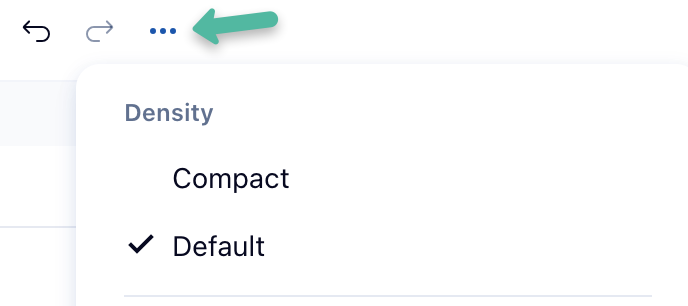
Hi Jessica Kim! There's a default and compact option where the default one shows a fuller view. Is that what you were looking for?
Lisa Community Team at Wrike Wrike Product Manager Werde ein Wrike-Experte mit Wrike Discover
Lisa Wrike Team member Werde ein Wrike-Experte mit Wrike Discover