Klaxoon Board: Your Quick Start Guide 📙
Выделено
TL;DR: Klaxoon Board is an all-in-one visual collaboration canvas. Create a board via + NEW, then structure it with Zones, Connectors, Colors, and ready-made Templates to quickly build a clear, organized workspace for effective idea sharing and analysis.
Klaxoon Board
Board is an all-in-one, simple, and accessible tool that enables visual collaboration that is participatory and inclusive, all in one place. Its infinitely scalable canvas brings together all of Klaxoon’s expertise and sets a new visual standard for efficient hybrid teamwork, whether in the office, at home, or on the go.
How do I create a Klaxoon Board? 🤔
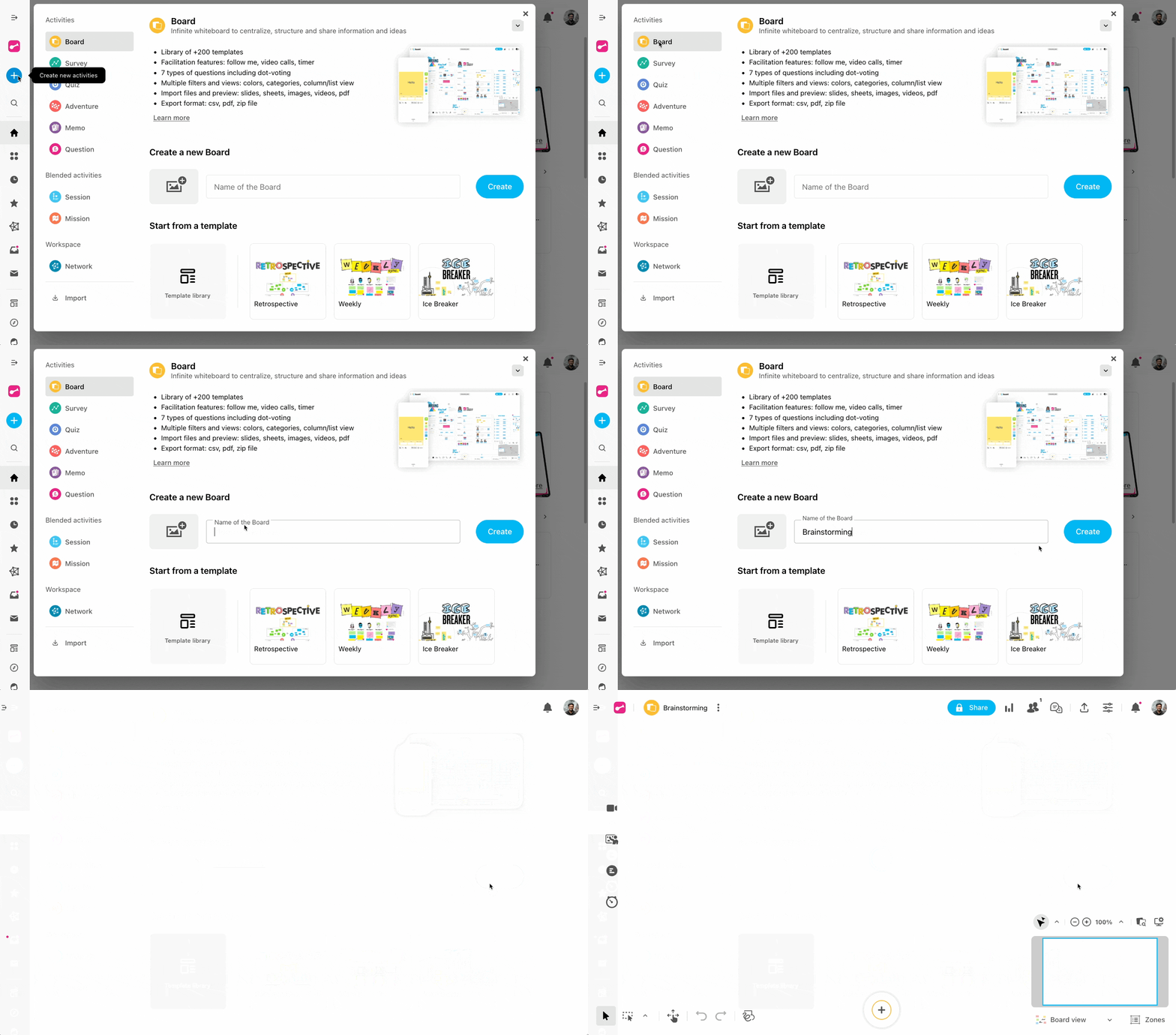
1. Go to the Klaxoon home page and click on + NEW, then select Board.
2. Enter a name for the Board (250 characters maximum), add an image if you want, then click on Create.
How can I structure my ideas on a Board?
Now that the board has been created, this virtual blank page can feel overwhelming. Let’s explore simple ways to transform this infinite whiteboard into an organized, readable space ✔️
-
Delimit the space with the Zones
Zones are your best friends for creating clear sections on your Board. They allow you to visually group ideas that are related.
Use cases:
-Brainstorming: Create fields for different categories of ideas (e.g. “Short-term ideas”, “Long-term ideas”).
-Retrospective: Use areas for "What went well", "What can be improved", "Actions to take".
How to add zones?
- From the toolbar of your Board, click on Insert, and click on the zone button.
- Select the zone to be delimited according to your needs.
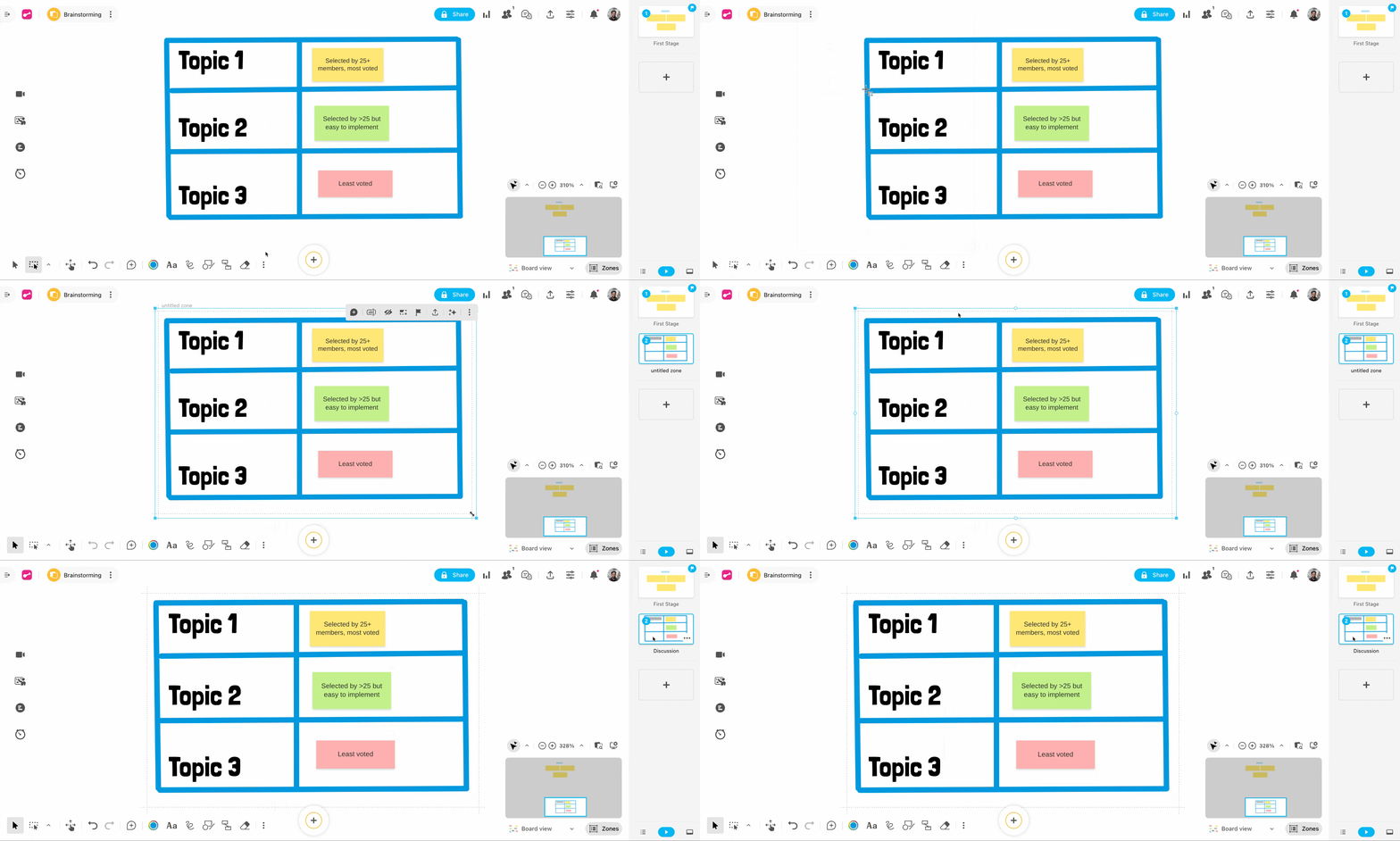
For more information on customizing zones, read this article.
-
Group ideas with Connectors
Connectors are powerful tools for organizing and clarifying your ideas on your Board. They allow you to visually link items together, providing a better understanding of links and flows.
How to use the connector?
- To start using a connector, select two items that you want to connect.
- Click on the first element and then on one of the white circles that appear in the blue box that surrounds the idea.
- A connector will appear that you can stretch to another idea to connect it.
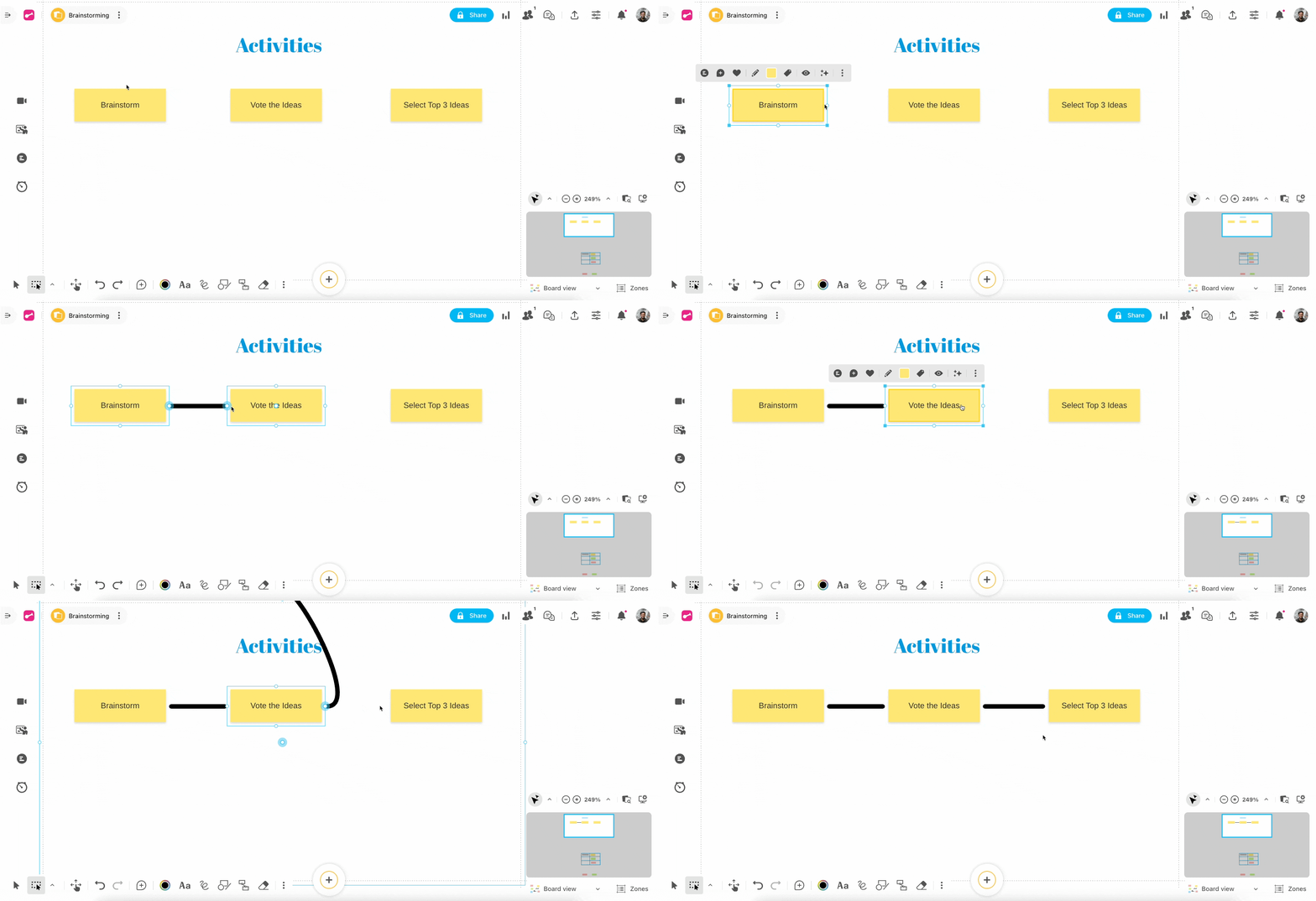
You can further customize line styling, add text to connectors, adjust link types and shapes, and more. For detailed instructions, click here.
-
Make sense with Colors
Color is a powerful tool for visual organization, helping you encode meaning and priority at a glance, guide attention to what matters, and reduce cognitive load, making ideas easier to scan and remember.
Use cases:
-Prioritization: Example - Green for high-priority ideas, yellow for medium, red for low.
-Type of idea: Example - Blue for questions, orange for actions, purple for information.
-Participants: Each participant can use their own color for their ideas during a brainstorming session.
To change the color of an idea:
- Select the idea.
- In the menu, click the color square.
- Choose a color, and it updates instantly.
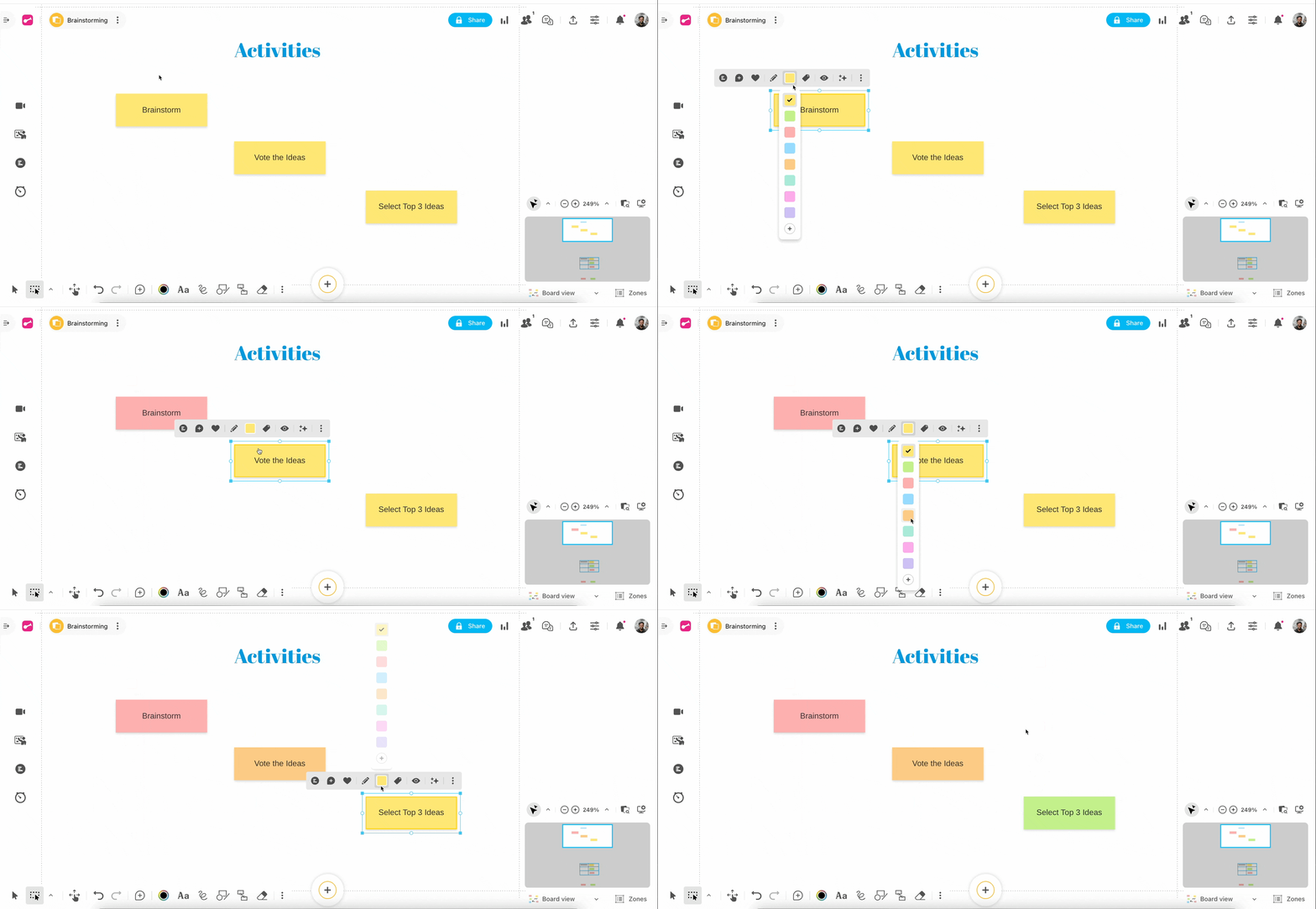
It’s possible to add a custom color of your choice. For in-depth information, give this article a read.
-
Structure your ideas with Templates
Make use of ready-to-use templates from the template library to make it easier to prepare and run activities. Klaxoon offers a variety of templates so you can choose what is best for your activity.
Use cases:
-Brainstorming: Sharing ideas, Summarizing a workshop.
-Retrospective: Browse shared ideas, prioritize, and define actions to take.
-Kanban: Manage your projects by listing the actions to be carried out and then categorizing them: "On pause", "to do", "in progress", "done".
How do I select a template?
- In the left navigation bar, select the Template library.
- Use the search bar or browse the templates shown on the right.
Click on a template, then click Use template.
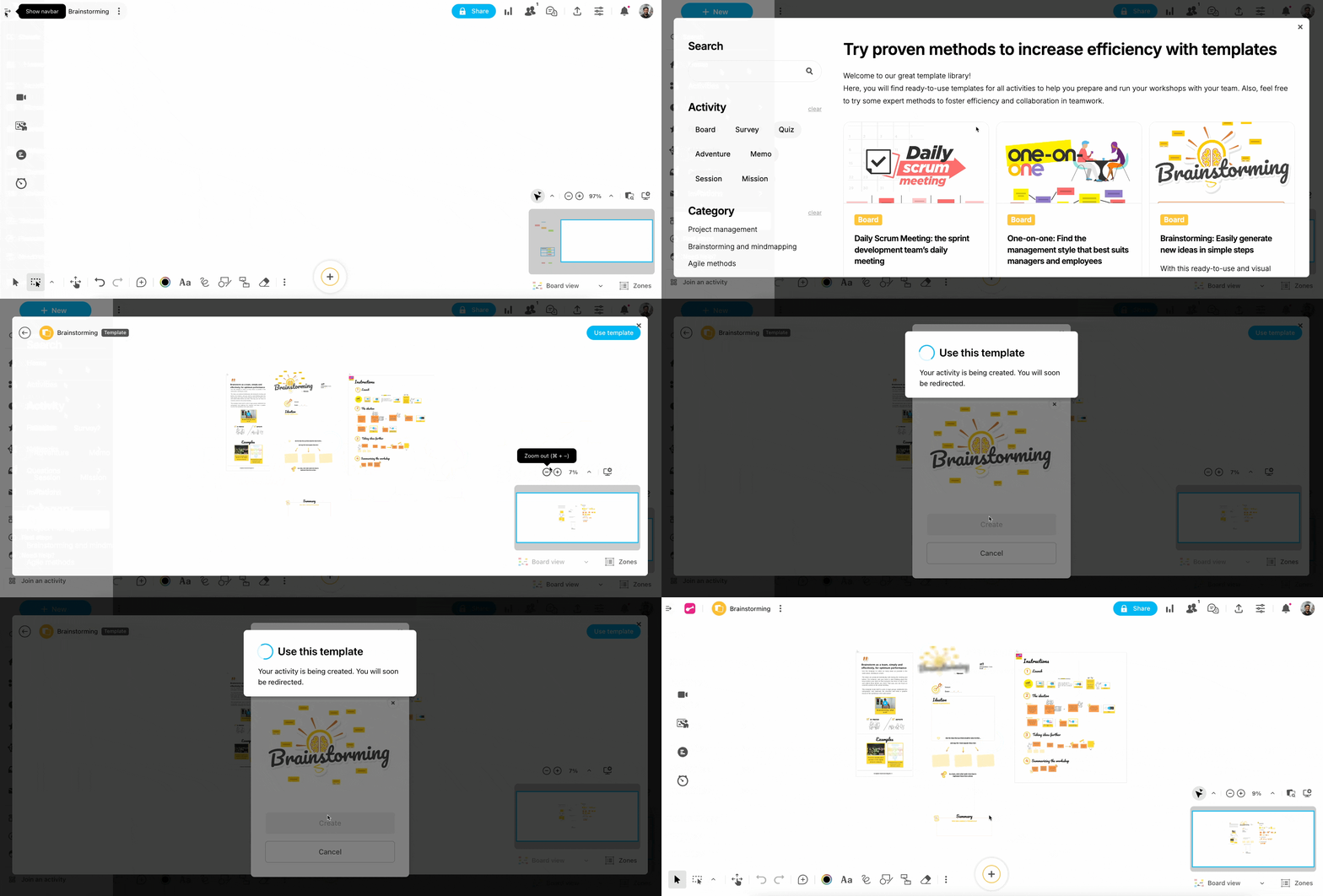
Watch the video tutorial to learn more about templates.
By following these steps, you will transform your Klaxoon Board into a clear, organized, and visually engaging workspace, thereby facilitating the exchange and analysis of your ideas.
Don’t forget to share your thoughts and feedback in the comments below! 😁
Rohan V Community Team at Wrike Wrike Product Manager Станьте экспертом в Wrike с Wrike Discover
Rohan V Wrike Team member Станьте экспертом в Wrike с Wrike Discover
Can you help? Answer the question and work your way towards becoming a Wrike Ninja 🥋 Sign in and answer.
Войдите в службу, чтобы оставить комментарий.